
CLOUD BASICS · 3 MIN READ
What is cloud storage? A practical guide for beginners
· CloudWink team
Cloud storage gives your files a home on servers you access over the internet. Instead of keeping your only photo collection on one phone or drive, you upload a copy to an account. The useful part is simple: your files can remain available even when the device that created them is elsewhere.
Where do your files actually go?
The cloud is physical infrastructure managed by a service provider. Your phone sends data over a network to storage systems in a data center. The service connects those stored files to your account and provides a way to browse, download and share them.
A thumbnail in an app is a preview. It does not, by itself, prove that a full original has finished uploading. Before relying on a service, check its upload status and download a sample file. This small check separates seeing a picture from knowing you have a usable copy.
What can you store?
Different services accept different file types. Some are general file lockers, while others focus on photos, video or device backups. A photo library may offer date browsing and albums that a basic file locker lacks.
CloudWink supports photos, videos, audio and PDFs. It preserves uploaded originals without resizing or re-encoding them. That makes it a place for supported personal media and documents; it does not make it a full backup of every app and setting on your phone.
Explore what CloudWink storesStorage, sync and backup are different jobs
Storage is where files live. Sync keeps selected locations aligned, potentially including deletions. Backup keeps a recoverable copy so you can return to an earlier state or recover from loss. One service can offer several of these behaviors, but the words are not interchangeable.
Read what happens when you delete an item, close an account or stop paying. A recovery window helps with mistakes, but it is not the same as an independent archive.
What you need before your first upload
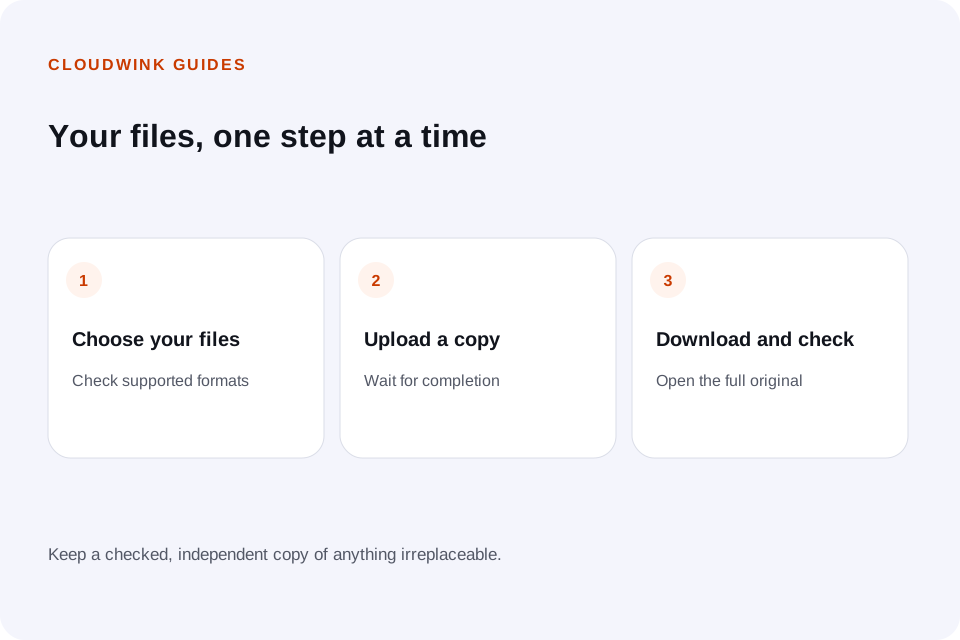
Start with a reliable connection, account access you can recover, and a realistic estimate of your library size. Your first upload may take much longer than opening a familiar web page because video files can be large.
- Try a small album containing a photo, a video and a PDF.
- Wait for confirmed completion, then download and open the files.
- Check supported formats, storage limits and export options.
- Keep another independent copy of irreplaceable material.
A good first use for cloud storage
Choose one collection you want to protect or share, such as last month’s holiday photographs. Upload it, create an album and test access. A small, completed collection teaches you more about the service than an unattended upload of years of files.
Once that works, move through the rest of your library in manageable batches. Keep the original source until you have checked the transfer and established a second copy.
Explore CloudWink platformsQuestions about this guide.
Does cloud storage use space on my phone?
The app, previews and downloaded files still use local space. Uploading files does not automatically remove the originals from your phone.
Can I access cloud files without internet?
Only files already downloaded or explicitly made available offline can be relied on without a connection. Check the service’s offline behavior before travelling.