
PRIVACY · 5 MIN READ
How to hide private photos on iPhone and Android
· CloudWink team
Some photos are not for everyone who borrows your phone. Documents, medical records, surprise gifts. There are several ways to keep them out of sight, and they protect against different things.
Built-in options.
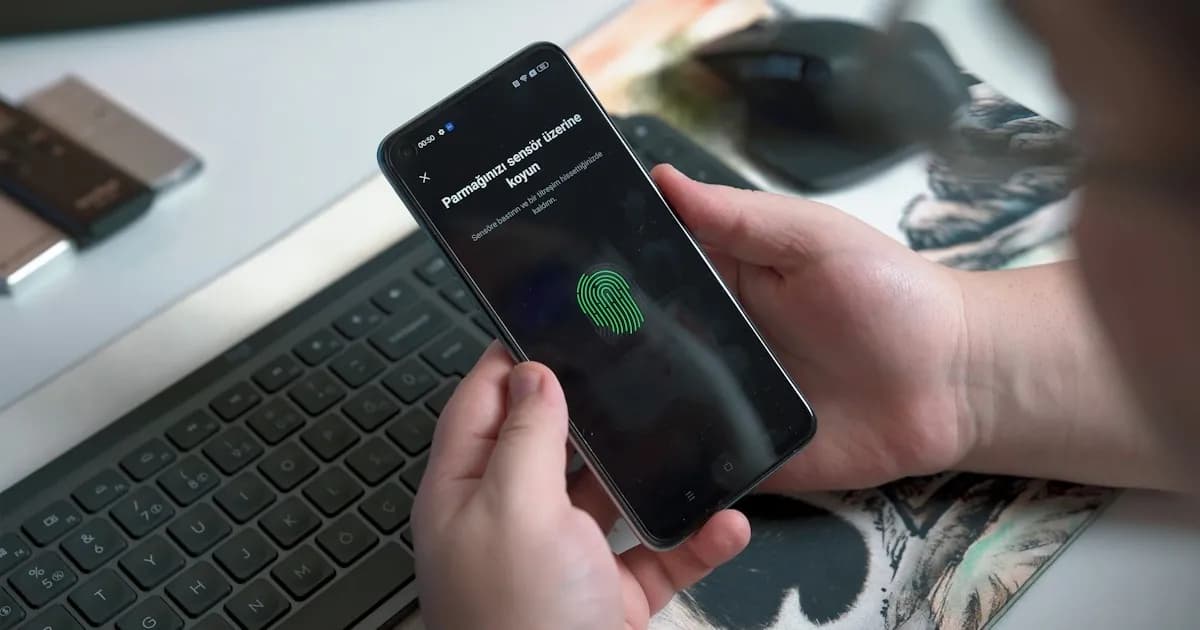
On iPhone, the Photos app has a Hidden album that can require Face ID or Touch ID. On many Android phones, Google Photos offers a Locked Folder, and some manufacturers add their own secure folder.
These are good first steps. They mostly protect against someone scrolling through your gallery.
What “hidden” does and does not mean.
Read the fine print before relying on one.
- It keeps photos out of the main grid, widgets and memories.
- It adds a device unlock step before the photos are shown.
- It is usually not end-to-end encryption, and says nothing about how the files are stored online.
- Some device-only folders are not backed up. Lose the phone and the photos go with it.
CloudWink Locked folder.
CloudWink’s Locked folder hides files from your main library, albums and Memories, and asks for Face ID, fingerprint or your device passcode every time it opens. Locked files cannot be added to a shared album.
Unlike device-only vaults, Locked files are stored in your CloudWink library, so they survive a lost phone. To be clear about what it is: the Locked folder is an access gate in the app, not end-to-end encryption.
Read about Locked folderQuestions about this guide.
Is the CloudWink Locked folder end-to-end encrypted?
No. It uses device authentication to gate access in the app. Files are encrypted in transit and at rest like every other CloudWink file.