
BACKUP · 5 MIN READ
How to back up photos from an Android phone
· CloudWink team
Android phones are generous with camera quality and less generous with storage. Here are the three backup routes that work, and the checks that keep them honest.
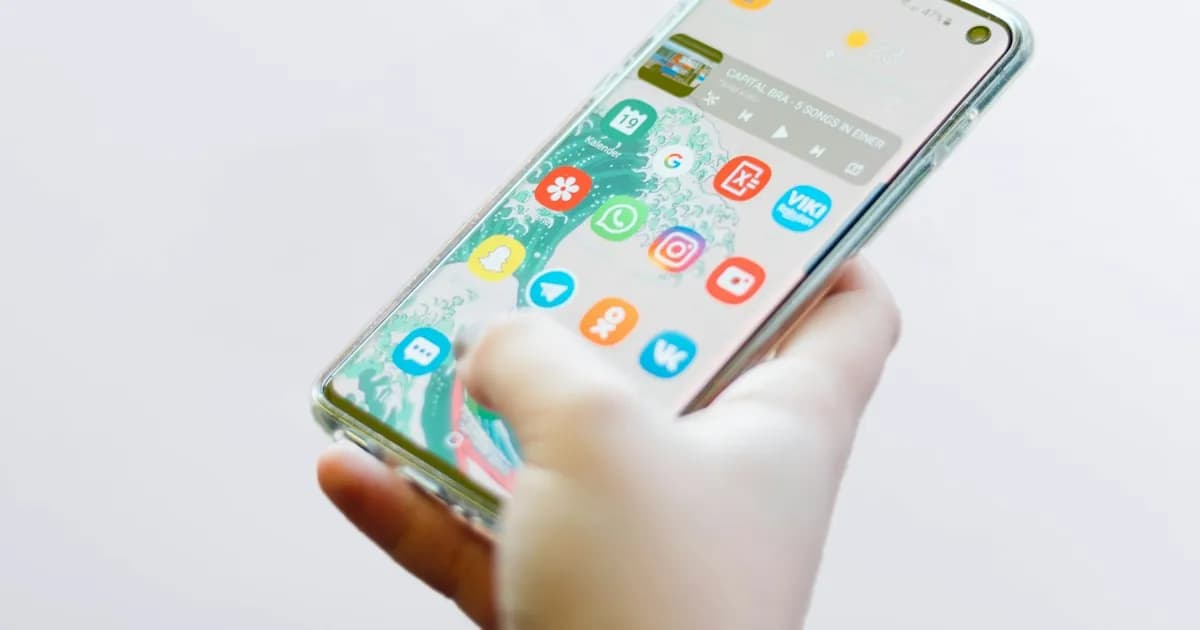
Option 1: a cloud photo library.
An app uploads photos from your phone to online storage. It is off-site by default and easy to browse from other devices. Check whether the service keeps original quality or offers only a compressed mode, and whether it counts against storage shared with your email.
Option 2: a computer over USB.
Connect the phone, choose File transfer, and copy the DCIM and Pictures folders to your computer. It is free and keeps originals. It is also easy to forget, and the copy sits in the same house as the phone.
Option 3: an SD card or USB drive.
Useful as an extra copy. Cards fail without warning, so never make one the only copy.
Before clearing space, check.
Two minutes of checking prevents most losses.
- The number of items in the backup matches the phone.
- A few videos play all the way through from the backup.
- Photo dimensions in the backup match the originals.
Backing up with CloudWink on Android.
Choose photos, videos, audio or PDFs from your device and CloudWink uploads them without compression. You can follow each upload and see how much storage your library uses. If your photos are in Google Drive, a one-time Drive import brings them across.
CloudWink for Android